> For the complete documentation index, see [llms.txt](https://docs.earthscale.ai/llms.txt). Markdown versions of documentation pages are available by appending `.md` to page URLs; this page is available as [Markdown](https://docs.earthscale.ai/earthscale-documentation/use-earthscale-in-your-products.md).
# Use Earthscale in Your Products
You can easily use Earthscale's tile servers from any common map rendering library that supports [XYZ tiles](https://en.wikipedia.org/wiki/Tiled_web_map#Defining_a_tiled_web_map).
These are URLs formatted using placeholders for WebMercator tile coordinates like `{x}, {y}, {z}`.
A common workflow is to:
* Add a dataset using the [Earthscale web app](https://app.earthscale.ai/)
* Configure the visualization in the web app
* Export the tile server URL or download an example that uses your data
## Steps
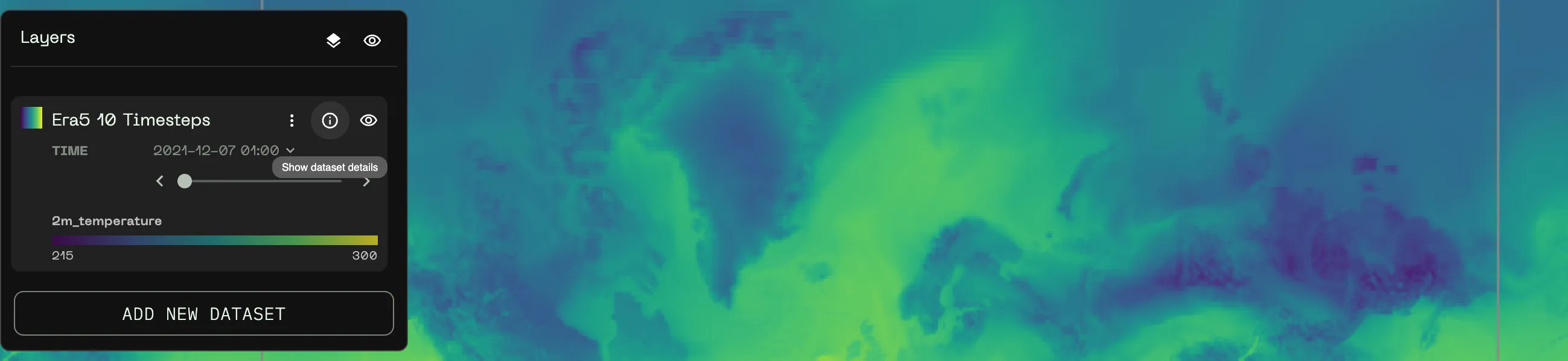
* Open the **dataset details** window by clicking on the triple dots icon  on a dataset in the sidebar and selecting **"View Details"** in the menu:
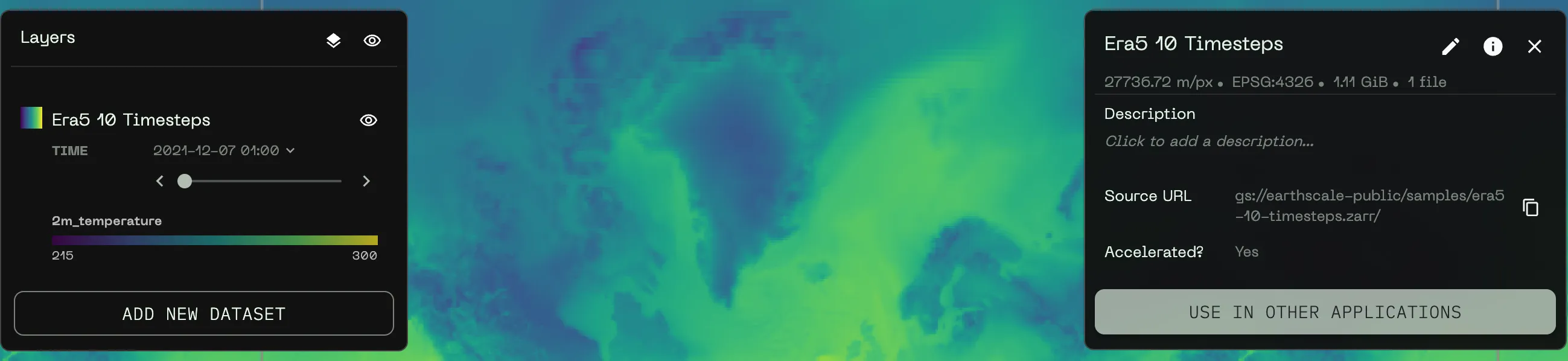
* Click **"Add to Application"** on the right-hand side:
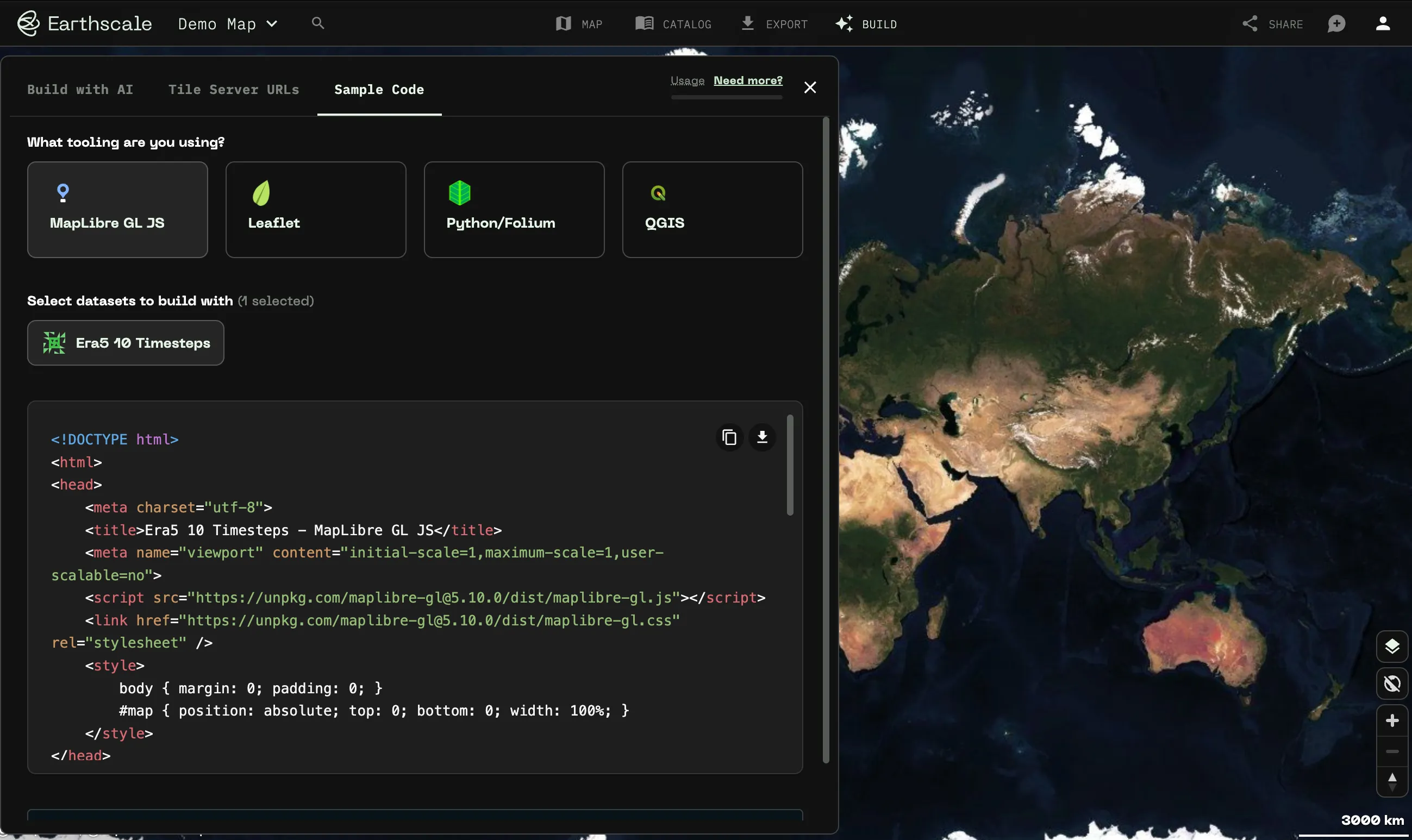
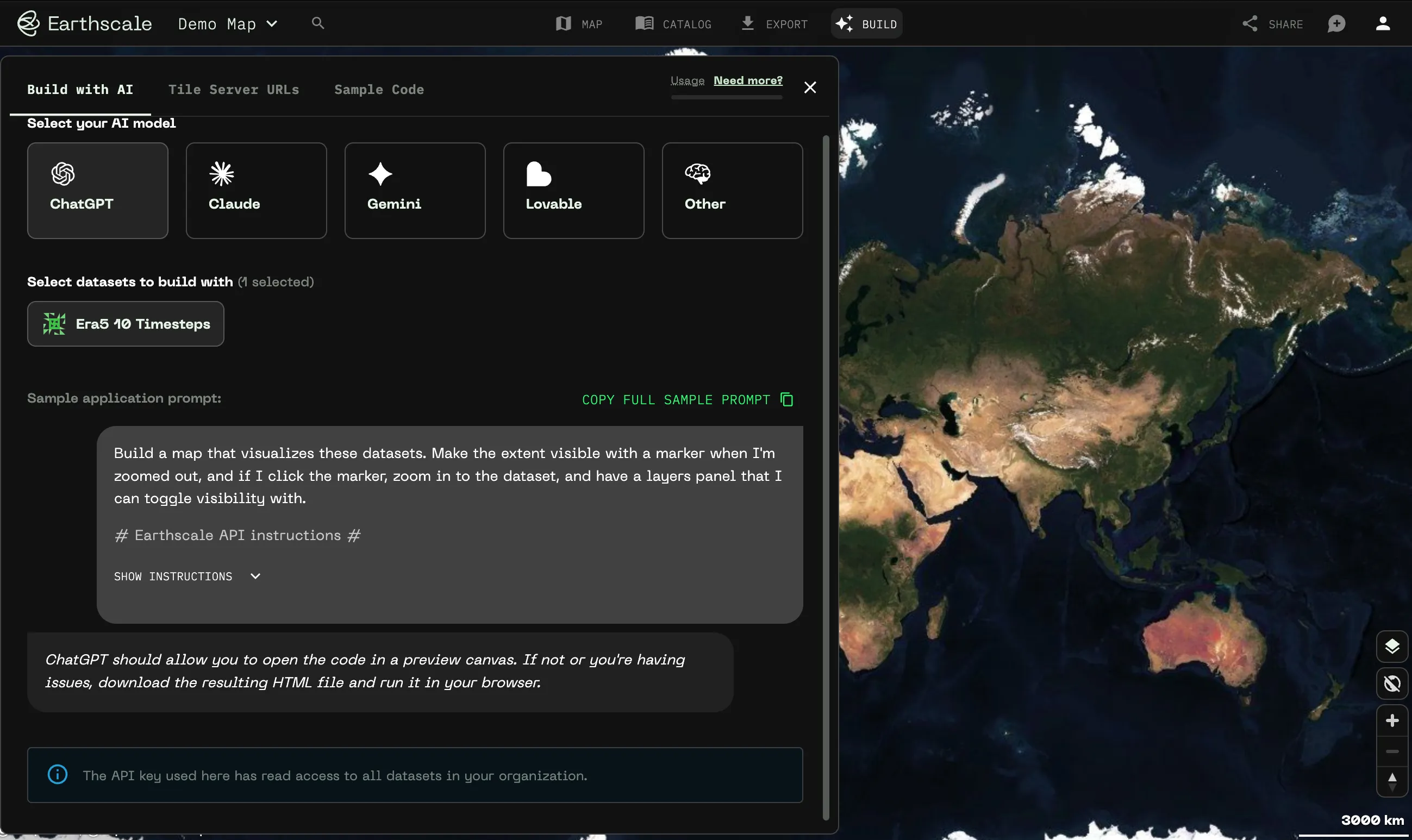
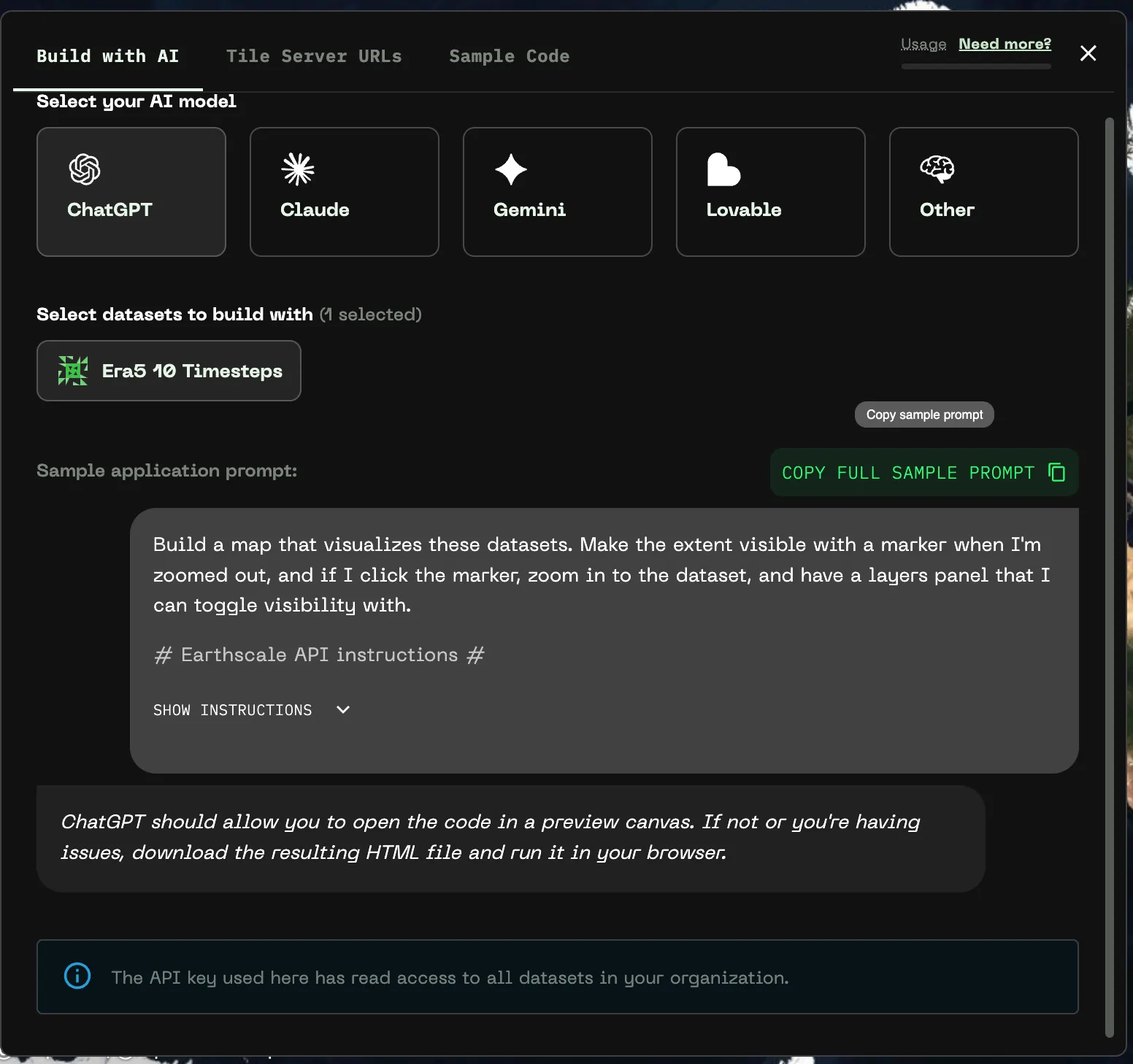
* You can also get to this dialog using the **"Build"** button in the topbar. Here, select "Sample Code"
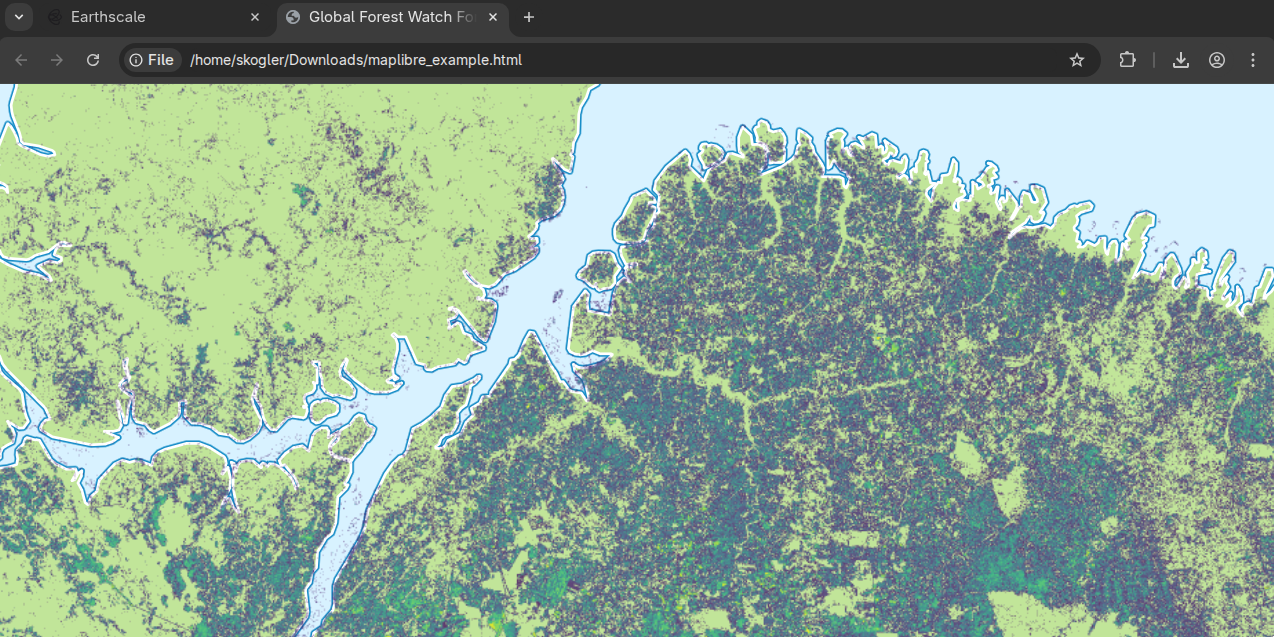
* And open the example in your browser:
## Use with AI Assistants
Earthscale provides a "Use Map in AI" feature that generates instructions for AI assistants to work with your map data. This feature:
* Generates a structured prompt with metadata about all datasets currently loaded in your map
* Includes tile server URLs and point query endpoints for each dataset
* Provides dimension information for raster datasets (e.g., time series data)
* Formats everything with clear instructions for the AI to use the Earthscale API
### Steps
1\. Click the **Build** button in the top bar
2\. Copy the generated prompt snippet
3\. Paste it into your AI assistant (ChatGPT, Claude, etc.)
4\. The AI can then:
* Generate code to visualize your data in frameworks like Leaflet, Folium, or MapLibre
* Create point queries to fetch pixel values at specific coordinates
* Handle multi-dimensional data by selecting appropriate dimension indices
* Respect zoom level constraints for optimal tile loading
## Automate it
You can use the [Python API](/python-api/getting-started.md) to add datasets and get their tile server URLs. For visualization parameters, we recommend configuring them once in the Earthscale web UI, and then reusing the parameters from the tile server URL displayed in the dataset details. You can also edit visualizations directly through the API parameters, see the [tile server URL specification](/http-api/dynamic-tiler-http-api.md).
## Security
To ease integration into your products, our tile servers use per-user API keys for authentication. You can see your API key in the exported URLs, as they are passed as GET parameters. We can revoke access to API keys at any time. If you accidentally leaked an API key or have a need for more advanced authentication, just contact us on Slack or [email](mailto:support@earthscale.ai), and we will handle it quickly.
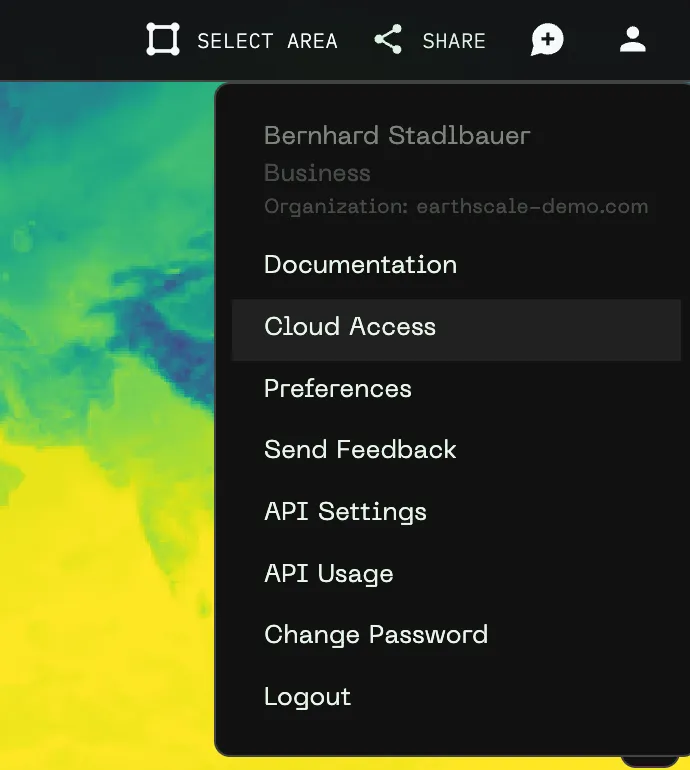
You can also view your API key under the "**API Settings**" in the user menu. In that menu, you can also restrict which website domains can call the tile servers, so that only your applications can access them.
---
# Agent Instructions
This documentation is published with GitBook. GitBook is the documentation platform designed so that both humans and AI agents can read, navigate, and reason over technical content effectively. Learn more at gitbook.com.
## Querying This Documentation
If you need additional information that is not directly available in this page, you can query the documentation dynamically by asking a question.
Perform an HTTP GET request on the current page URL with the `ask` query parameter, and the optional `goal` query parameter:
```
GET https://docs.earthscale.ai/earthscale-documentation/use-earthscale-in-your-products.md?ask=&goal=
```
`ask` is the immediate question: it should be specific, self-contained, and written in natural language.
`goal` is optional and describes the broader end goal you are ultimately trying to accomplish on behalf of the user. GitBook uses it to tailor the answer towards what is most useful for that goal.
The response will contain a direct answer to the question and relevant excerpts and sources from the documentation.
Use this mechanism when the answer is not explicitly present in the current page, you need clarification or additional context, or you want to retrieve related documentation sections.