> For the complete documentation index, see [llms.txt](https://docs.earthscale.ai/llms.txt). Markdown versions of documentation pages are available by appending `.md` to page URLs; this page is available as [Markdown](https://docs.earthscale.ai/earthscale-documentation/cecil-integration.md).
# Integrate with Cecil
[Cecil](https://cecil.earth) is a data platform that streamlines the process to acquire spatial datasets from leading providers with one contract, one integration, and no minimum usage requirements. Once connected, you can import and use all datasets available in the Cecil platform.
## Prerequisites
You'll need a Cecil API key to connect. Follow the instructions in the [Cecil documentation](https://docs.cecil.earth/getting-started) to obtain an API key.
## Connecting to Cecil
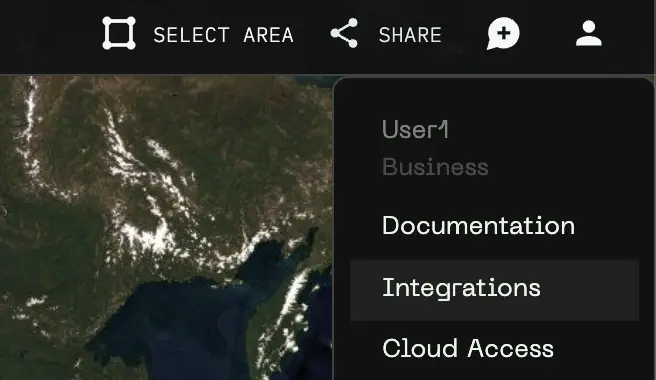
1. Click the **user icon** in the top right corner of the Earthscale interface
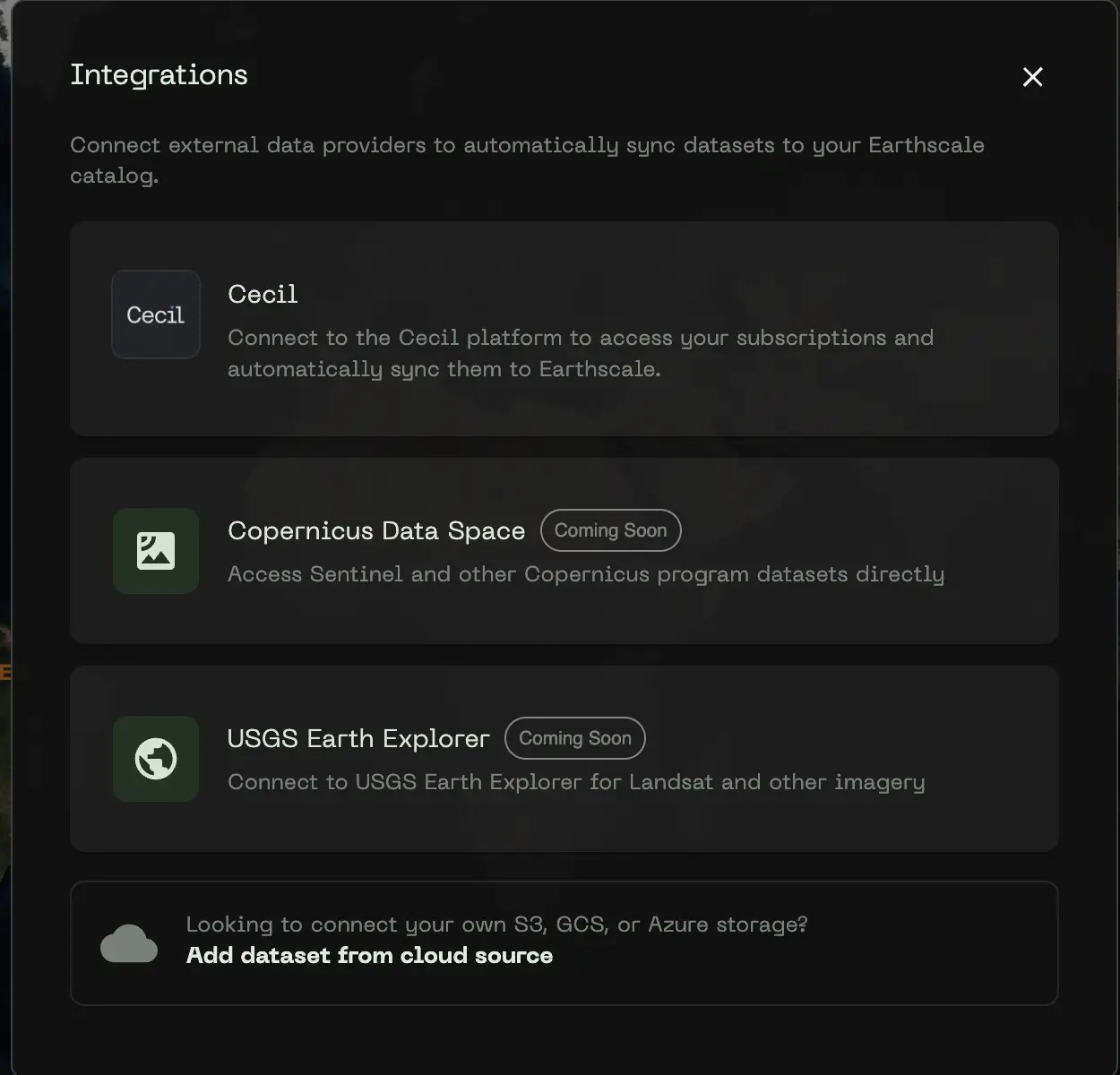
2. Select **Integrations**
3. Click on **Cecil**
4. Enter an **API Key Name** (this will be visible to anyone in your organization)
5. Enter your **Cecil API Key**
6. Click **Connect to Cecil**
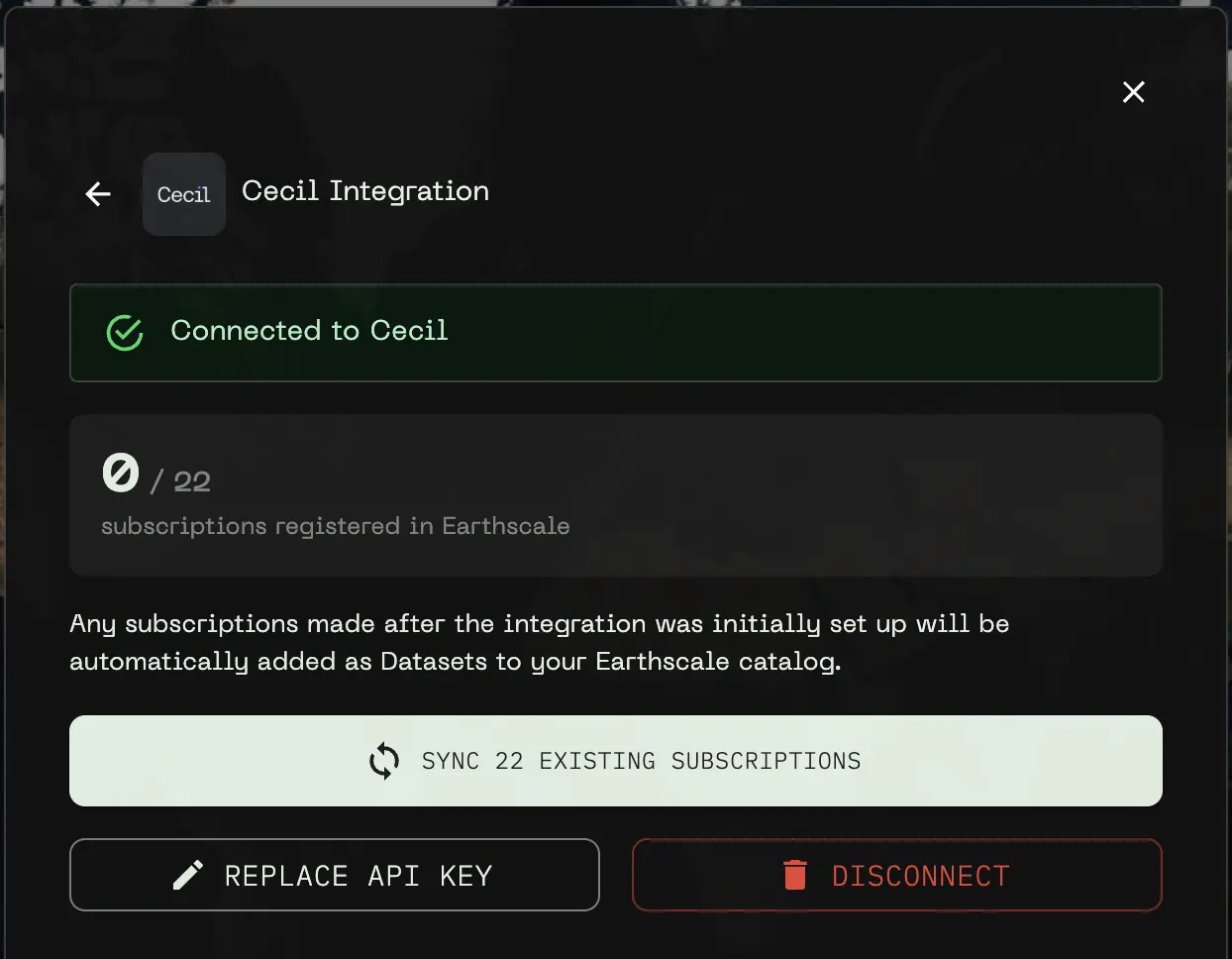
Once connected, Earthscale will automatically set up a webhook to receive notifications when your Cecil subscriptions are updated.
## Syncing Your Subscriptions
After connecting, you can sync your existing Cecil subscriptions with Earthscale. This imports each subscription as a dataset in your catalog.
1. In the Cecil integration panel, you'll see the number of subscriptions available to sync
2. Click **Sync Existing Subscriptions** to begin the import process
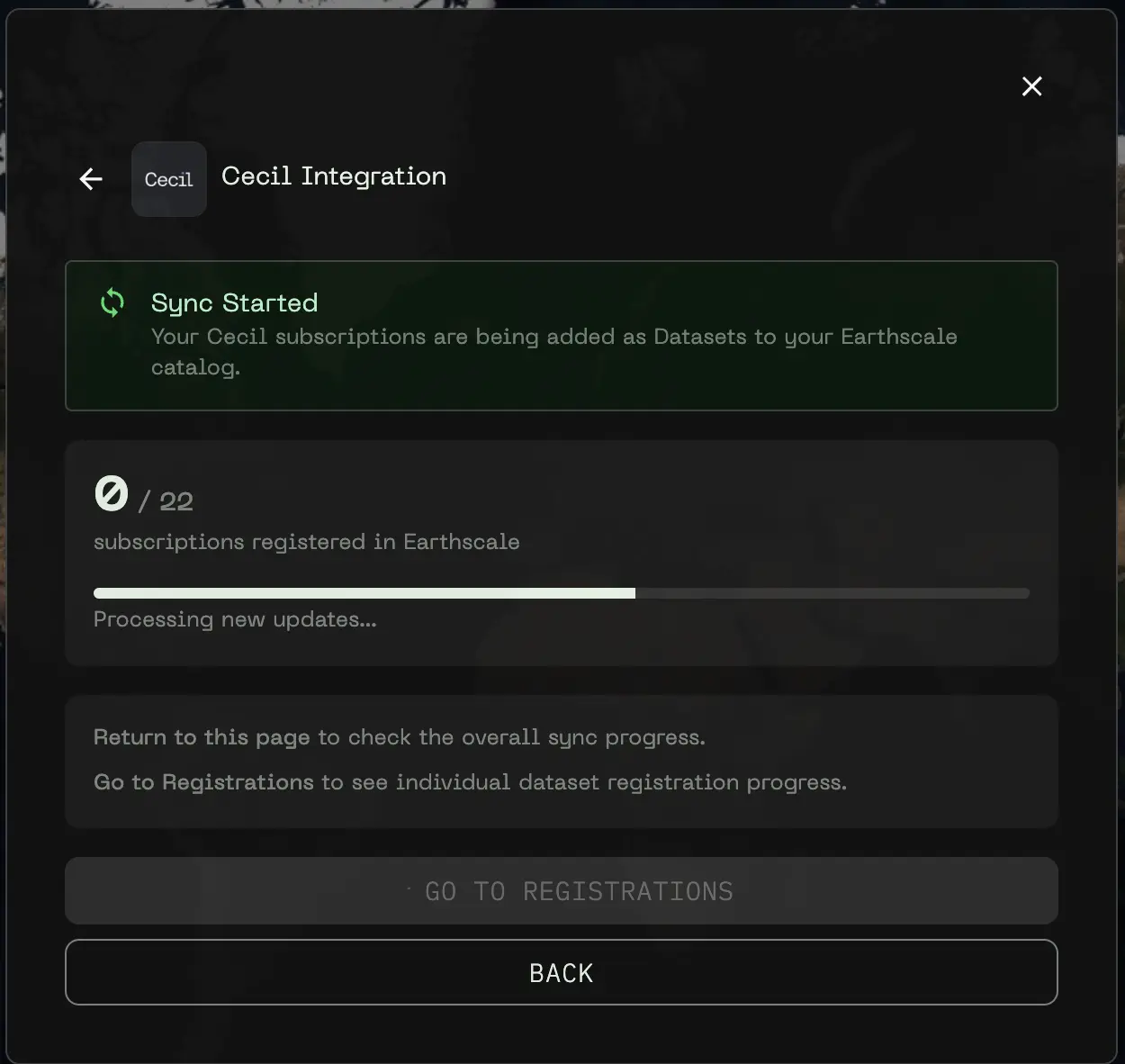
3. A progress indicator shows how many subscriptions have been registered
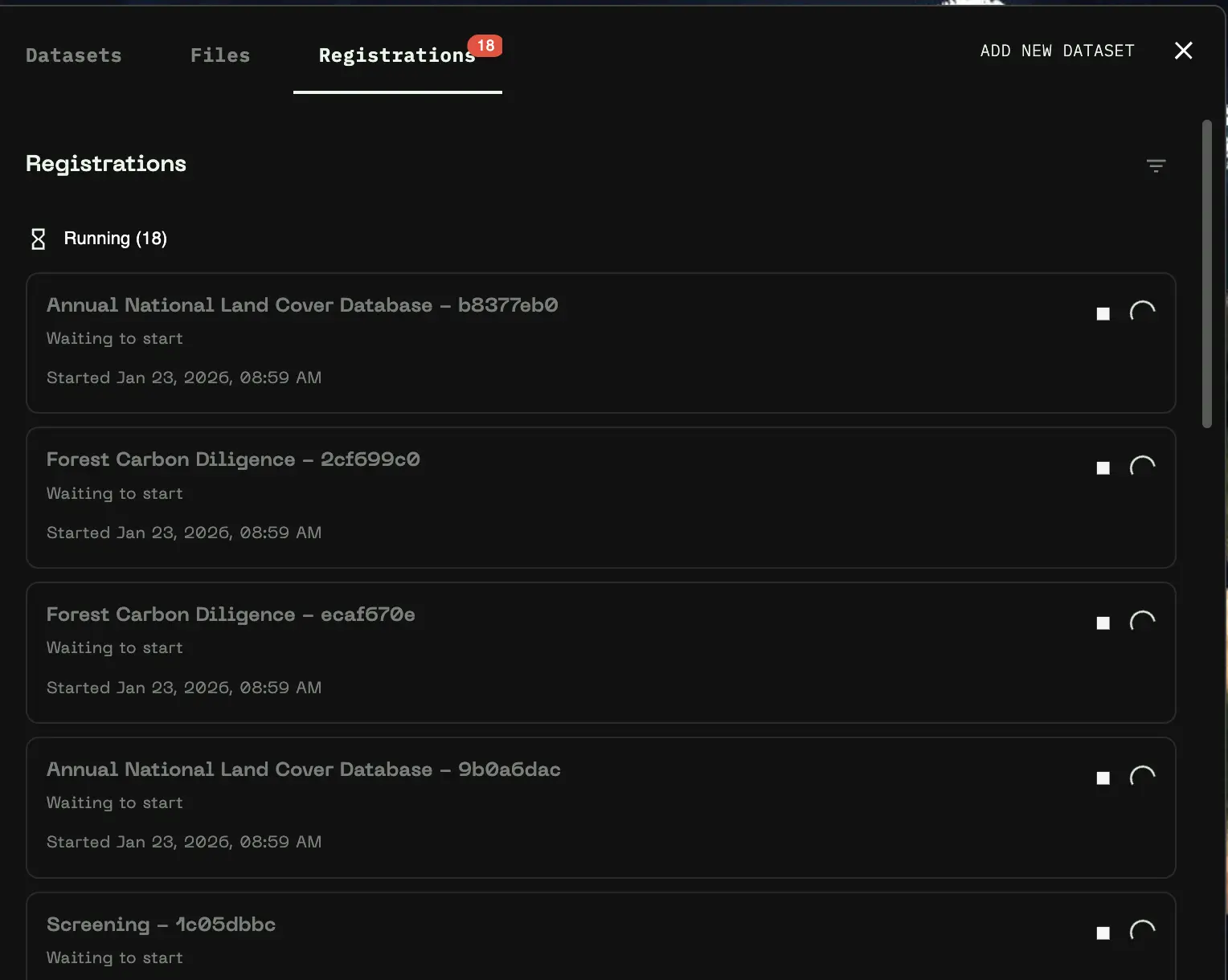
You can monitor individual dataset registration progress by clicking **Go to Registrations** or navigating to the Registrations view from the sidebar. The entire process may take a few minutes or longer depending on how many subscriptiosn you have. This process does not copy any data.
{% hint style="info" %}
Only raster datasets are currently supported. Vector datasets from Cecil will be skipped during sync. Additionally, some datasets contain variables not yet supported by Earthscale.
{% endhint %}
## Automatic Updates
Once connected, Earthscale automatically handles updates to your Cecil data:
* **New subscriptions** are automatically registered as datasets when you subscribe to new data in Cecil
* **Data updates** trigger updates in Earthscale when new data is delivered to existing subscriptions
## Finding Cecil Datasets in the Catalog
Switch to the *Catalog* view in the topbar to see your datasets.
### Quick Filter
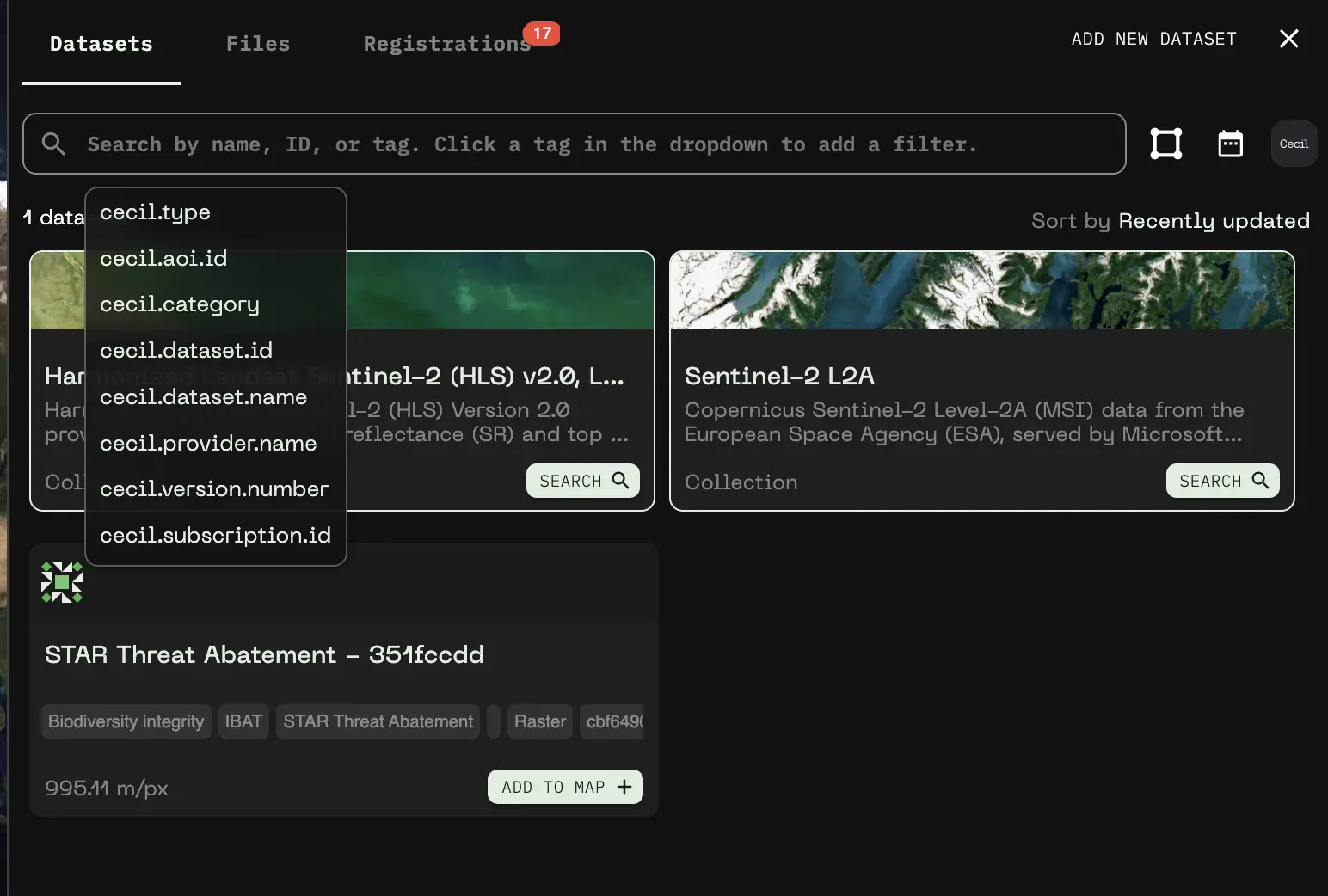
When connected to Cecil, a Cecil icon appears in the catalog header. Click it to toggle filtering to show only Cecil datasets.
### Tag-Based Search
Each Cecil dataset is tagged with metadata that you can use to search and filter:
| Tag | Description |
| ----------------------- | ----------------------------- |
| `cecil.dataset.name` | The name of the Cecil dataset |
| `cecil.aoi.id` | Area of Interest ID |
| `cecil.subscription.id` | Subscription ID |
| `cecil.category` | Dataset category |
| `cecil.provider.name` | Data provider name |
You can search by these tags in the catalog search bar, or click on a tag displayed on a dataset card to filter by that value.
## Working with Cecil Data
Once your Cecil datasets are in Earthscale, you can work with them like any other dataset:
### Adding to the Map
Click the **Add to map** button on any Cecil dataset card in the catalog to add it to your current map. You can combine Cecil data with:
* Other Cecil subscriptions
* Your own uploaded geospatial data
* Datasets from the Earthscale public catalog
### Inspecting Data
Click anywhere on the map to inspect pixel values at that location.
### Editing Visualizations
Customize how your data appears on the map:
1. Click the **three dots menu** on a dataset card and select **Edit Visualization**, or click directly on the visualization preview
2. Adjust settings like:
* Band selection
* Color ramp
* Min/max values
* Opacity
3. Changes are applied in real-time
### Choosing Data Variables to Display
Many Cecil datasets contain multiple data variables (bands) that you can visualize. When editing visualizations, you can select which variable to display:
* **Single-band visualization**: Choose one variable to display as a color-mapped layer
* **RGB visualization**: Select three variables to combine into a true-color or false-color composite
* **Categorical variables**: Some variables (like land cover classifications) use predefined color schemes based on their raster attribute tables
The visualization editor shows all available variables for each dataset.
### Legend
Toggle the legend visibility using the legend button in the top of the map sidebar to see color scales and value ranges for your visible datasets.
## Sharing Your Map
Share maps containing Cecil data just like any other Earthscale map:
1. Click the **Share** button in the top bar
2. Choose your sharing options (public read-only link, or internal to your organization)
3. Recipients with appropriate permissions can view your map with all Cecil datasets included
## Managing Your Connection
### Replace API Key
If you need to update your Cecil API key:
1. Open the Cecil integration panel
2. Click **Replace API Key**
3. Enter the new key name and API key
4. Click **Update API Key**
### Disconnect
To remove the Cecil integration:
1. Open the Cecil integration panel
2. Click **Disconnect**
3. Confirm the disconnection
{% hint style="warning" %}
Disconnecting will remove Earthscale's access to your Cecil account. Existing datasets synced from Cecil will no longer be accessible in Earthscale.
{% endhint %}
---
# Agent Instructions
This documentation is published with GitBook. GitBook is the documentation platform designed so that both humans and AI agents can read, navigate, and reason over technical content effectively. Learn more at gitbook.com.
## Querying This Documentation
If you need additional information that is not directly available in this page, you can query the documentation dynamically by asking a question.
Perform an HTTP GET request on the current page URL with the `ask` query parameter, and the optional `goal` query parameter:
```
GET https://docs.earthscale.ai/earthscale-documentation/cecil-integration.md?ask=&goal=
```
`ask` is the immediate question: it should be specific, self-contained, and written in natural language.
`goal` is optional and describes the broader end goal you are ultimately trying to accomplish on behalf of the user. GitBook uses it to tailor the answer towards what is most useful for that goal.
The response will contain a direct answer to the question and relevant excerpts and sources from the documentation.
Use this mechanism when the answer is not explicitly present in the current page, you need clarification or additional context, or you want to retrieve related documentation sections.