> For the complete documentation index, see [llms.txt](https://docs.earthscale.ai/llms.txt). Markdown versions of documentation pages are available by appending `.md` to page URLs; this page is available as [Markdown](https://docs.earthscale.ai/earthscale-documentation/access-your-own-data/aws-s3.md).
# AWS S3
### Supported URL formats
Earthscale supports S3 URLs formatted like:
```
s3://{bucket_name}/{path_to_files_that_can_contain_glob_patterns}
```
Values in curly brackets are placeholders.
### Security
Earthscale uses OpenID Connect (OIDC) to securely access your cloud data using dedicated per-customer service accounts. This eliminates the need to share credentials while providing fine-grained access control over your cloud resources. It also lets you revoke access at any time if necessary.
### Granting Access
To grant Earthscale read-only access to an S3 bucket:
* Open [Earthscale](https://app.earthscale.ai/)
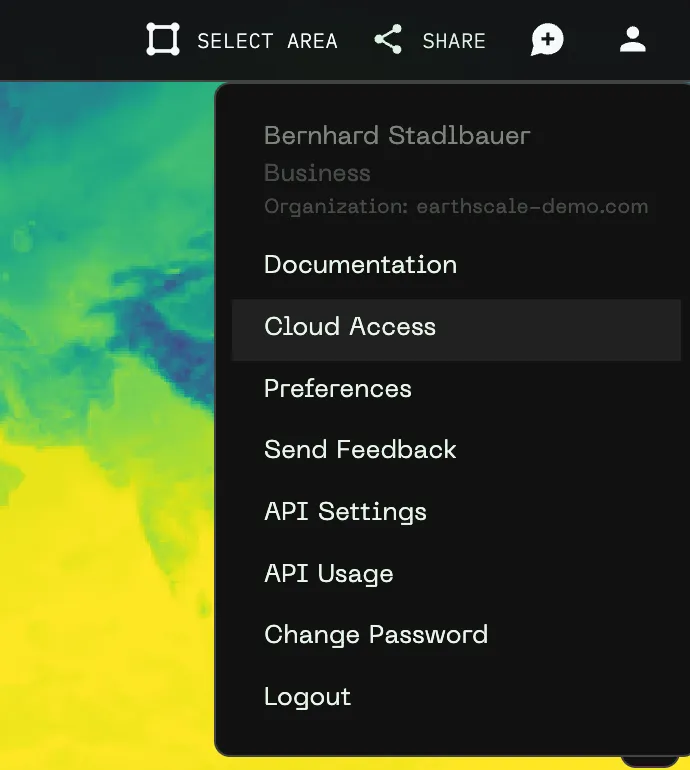
* Click on the user icon in the top-right corner of the left sidebar
* Click **"Cloud Access"**
* Enter the bucket name you want to share and click the **"Copy"**  button at the top-right corner.

* Execute the command in your CLI or send the instructions to the responsible administrator in your organization.
### Use the AWS Console
If you do not have access to the CLI or want more control, you can use the AWS Console to grant us access to a bucket.
* Open [Earthscale](https://app.earthscale.ai/)
* Click on the user icon in the top-right corner of the left sidebar
* Click **"Cloud Access"**
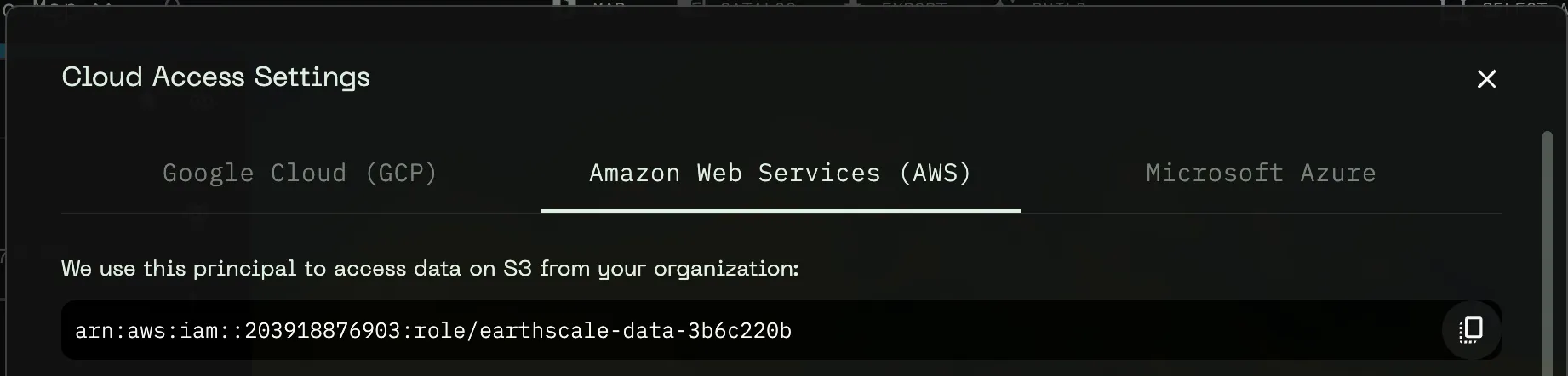
* On the **"Amazon Web Services (AWS)"** tab you can see the principal id we use to access data for your organization (there is one per customer)
* Click the copy button next to it or copy it manually
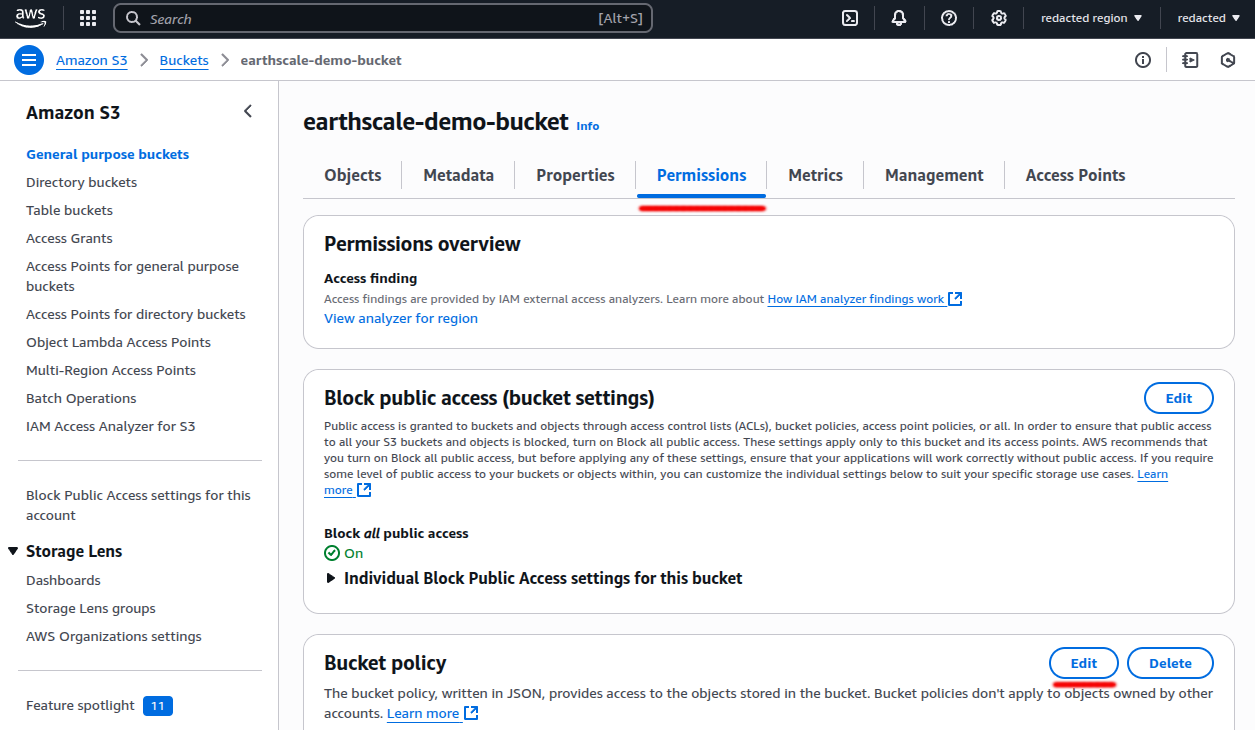
* Navigate to the bucket you want to share on the AWS Console
* Click the **"Permissions"** tab
* Locate the **"Bucket policy"** section
* Click the **"Edit"** button in this section
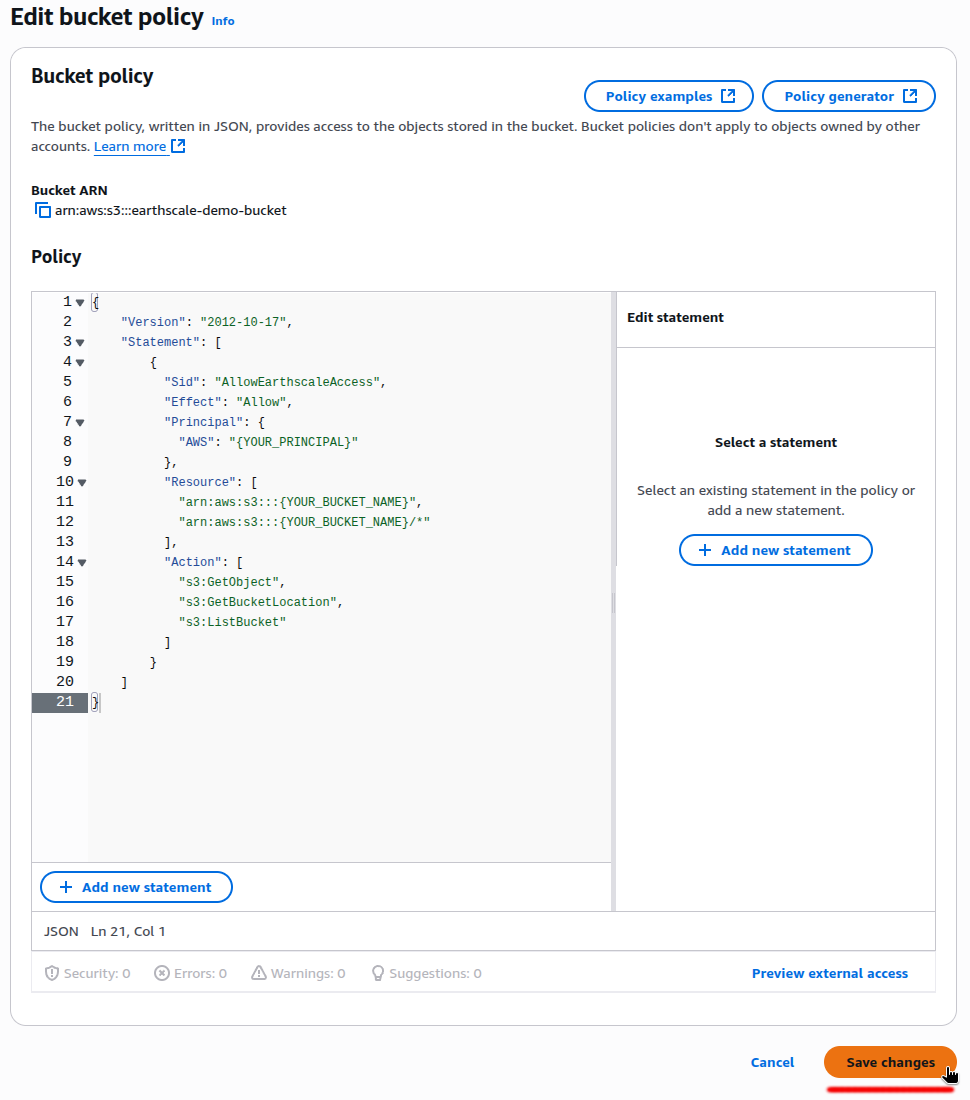
* This opens the policy editor. Copy this JSON and paste it into a local text editor (Visual Studio Code or Notepad, for example):
```json
{
"Sid": "AllowEarthscaleAccess",
"Effect": "Allow",
"Principal": {
"AWS": "{YOUR_PRINCIPAL}"
},
"Resource": [
"arn:aws:s3:::{YOUR_BUCKET_NAME}",
"arn:aws:s3:::{YOUR_BUCKET_NAME}/*"
],
"Action": [
"s3:GetObject",
"s3:GetBucketLocation",
"s3:ListBucket"
]
}
```
* Replace the text `{YOUR_PRINCIPAL}` with the principal copied from Earthscale
* Replace the text `{YOUR_BUCKET_NAME}` with the bucket name you want to share (copy it from the AWS console to be safe from typos)
* Careful, this occurs twice, once it is trailed by `/*` and once it is not
* Copy the modified entry from your text editor
* Append it to the end of the statement list in the AWS Console policy editor
{% hint style="warning" %}
The policy likely contains other statements. Make sure to not delete or modify any existing ones. Just append to the end. If you are unsure at any point, do not edit the policy, and ask your administrator or contact us on Slack or [email](mailto:support@earthscale.ai)
{% endhint %}
{% hint style="info" %}
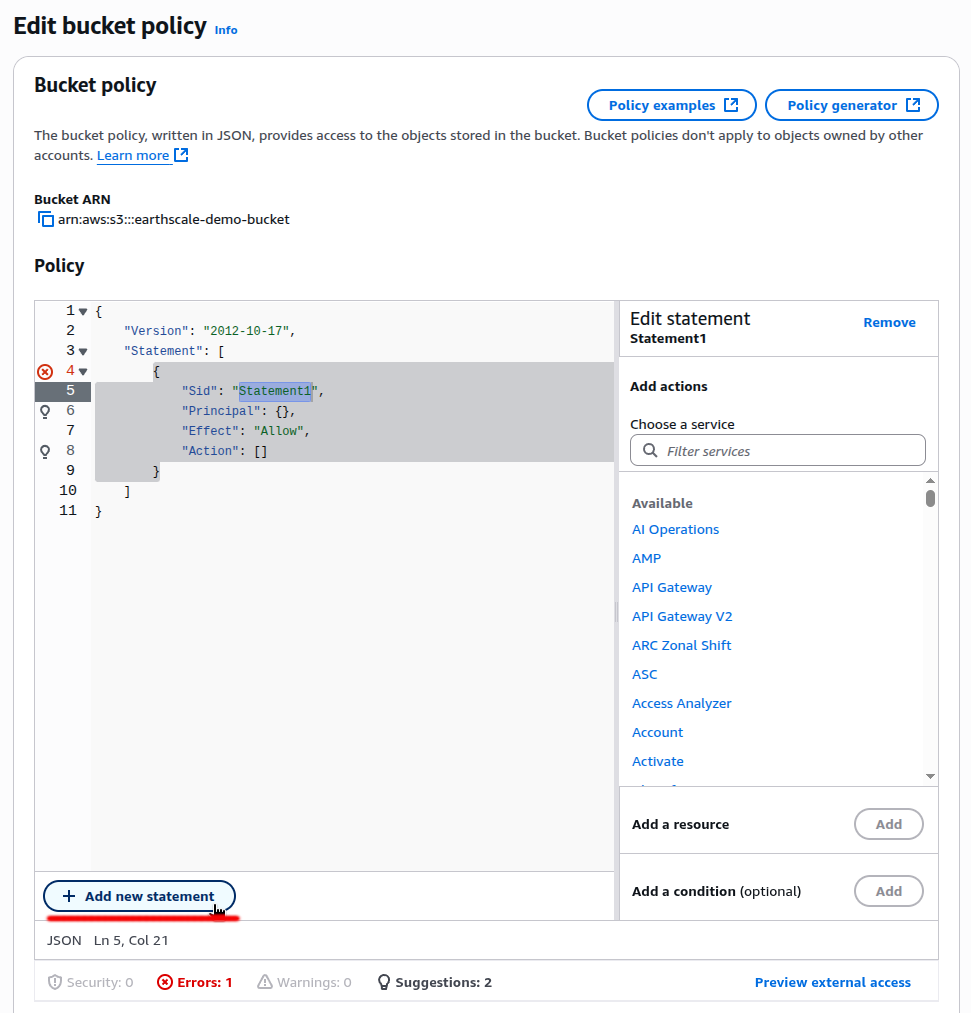
You can also use the policy editor to see how appending a new statement would look, by using the **"Add new statement"** button at the bottom. This lets you see where to insert the new statement easily. You can also use the graphical editor on the right-hand side, but it is likely easier to just copy-paste it from above.
{% endhint %}
* Finally, do not forget to click **"Save changes":**
From now on, you should be able to add any datasets in this bucket to Earthscale using their `s3://` URLs!
## Creating a new bucket
If you'd prefer to grant Earthscale access to a brand new bucket, you can follow the [AWS guide](https://docs.aws.amazon.com/AmazonS3/latest/userguide/create-bucket-overview.html) to create one. Then, follow the instructions above to grant Earthscale access to that bucket.
---
# Agent Instructions
This documentation is published with GitBook. GitBook is the documentation platform designed so that both humans and AI agents can read, navigate, and reason over technical content effectively. Learn more at gitbook.com.
## Querying This Documentation
If you need additional information that is not directly available in this page, you can query the documentation by asking a question.
Perform an HTTP GET request on the following URL with the `ask` and `goal` query parameters:
```
GET https://docs.earthscale.ai/earthscale-documentation/access-your-own-data/aws-s3.md?ask=&goal=
```
`ask` is the immediate question: it should be specific, self-contained, and written in natural language.
`goal` is what the user is ultimately trying to achieve, the reason they need the answer. Sharing it helps GitBook give you a better, more relevant answer. A goal is most helpful when it describes the outcome the user wants rather than restating the question. For example, with `ask=how do I create an API token`, a goal like `automate deployments from our CI pipeline` lets GitBook tailor the answer to that use case.
The response will contain a direct answer to the question and relevant excerpts and sources from the documentation.
Use this mechanism when the answer is not explicitly present in the current page, you need clarification or additional context, or you want to retrieve related documentation sections.
 {% endhint %}
* Finally, do not forget to click **"Save changes":**
{% endhint %}
* Finally, do not forget to click **"Save changes":**